
The Hook Broadcasting is a way to communicate a single message to a targeted group of guests. Use this workflow to send a broadcast message to guests via SMS, email, or voice message.
Before you begin...
- Requires at least Employee User Type access.
- Must have access to the Guests tab enabled within your Roles.
- Must have access to View under Guest Information and Broadcast under Guest Messaging enabled within your Roles.
- If you need to create Message Templates, you must have a Hotel Admin user account and do so in ALICE Admin
The Steps: Sending a Broadcast Message
- Navigate to the Guests tab.
- Click + Advanced Filters to open a dropdown of filters.
- Use the filters as needed to create a list of targeted guests to receive the broadcast message.
- Click Search.
- Use the checkboxes to select the guests you want to include in the broadcast
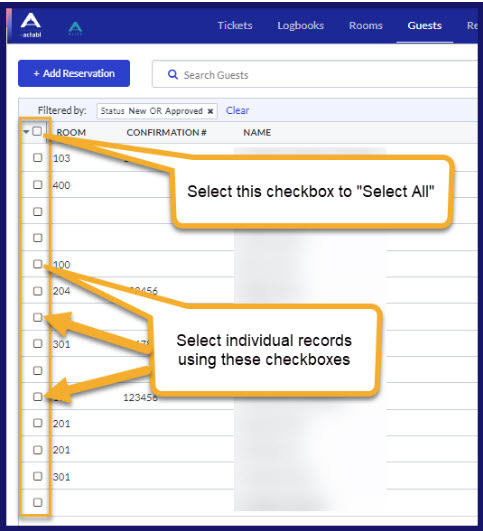
6. Click the Broadcast button.
7. Use the dropdown to select the delivery method for the message.
8. Select an option from the From field.
9. Enter your message in the text box or use the Templates link to access pre-populated message templates.
10. Click Send.
You can also create personalized messages through the Broadcast feature. Select the i icon in the message text box to access a list of available template keys.
Best Practices: Using Advanced Filters for Broadcasting
To ensure you reach the correct group of guests, we recommend filtering by both PMS Status and Dates of Stay. Note that Advanced Filter fields do not recognize partial searches, so you must use exact terminology.
The Steps: Filtering by PMS Status
- Click the gear icon in the upper-right-hand corner of the Guests tab.
- Select the checkbox for PMS Status to add a column to the tab for PMS Status.
- Review the PMS Statuses to find the group of guests you would like to broadcast a message to. The text used in the advanced filters must match exactly.
- Return to Advanced Filters and type the PMS Status exactly as it appears in the table.
- Select Search.
Filter by Dates of Stay:
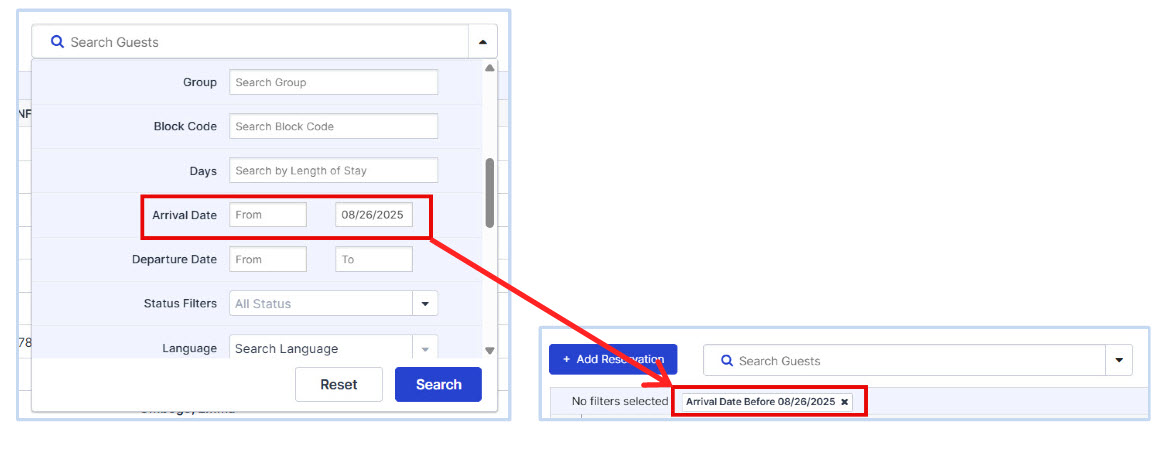
- In the Advanced Filters menu, scroll down to the date fields.
- For Arrival, click the fields to open a date picker and enter a date range using the From and To fields.
- Use the From field to filter for guests who have an arrival date after the date selected.
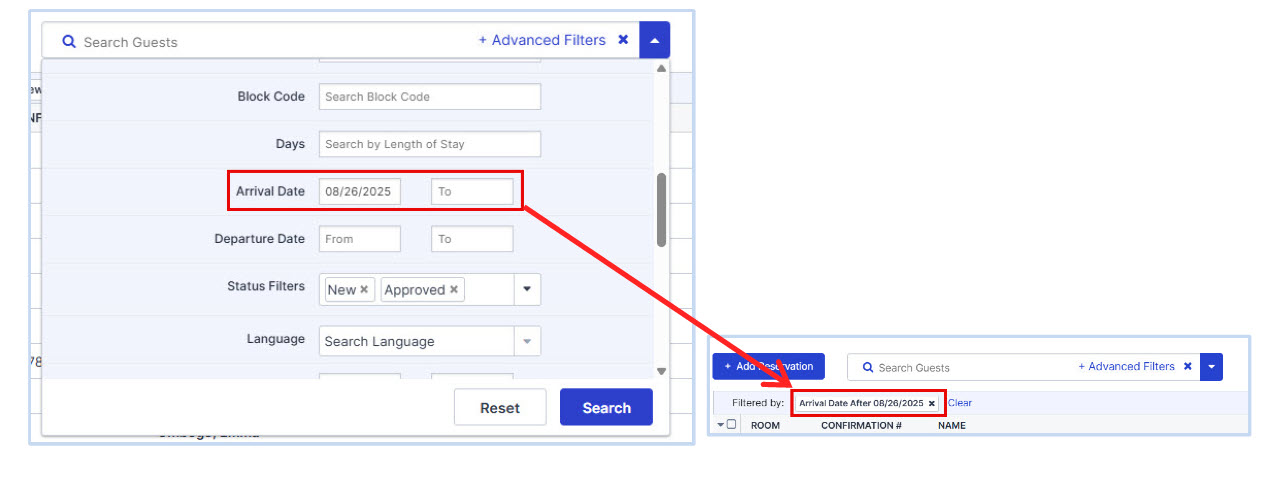
- Use the To field to filter to guests who have an arrival date before the date selected.
- To filter to guests who have an arrival date on a particular date, enter the date into both fields.
- Repeat for Departure Date.
- Use the From field to filter to guests who have a departure date after the date selected
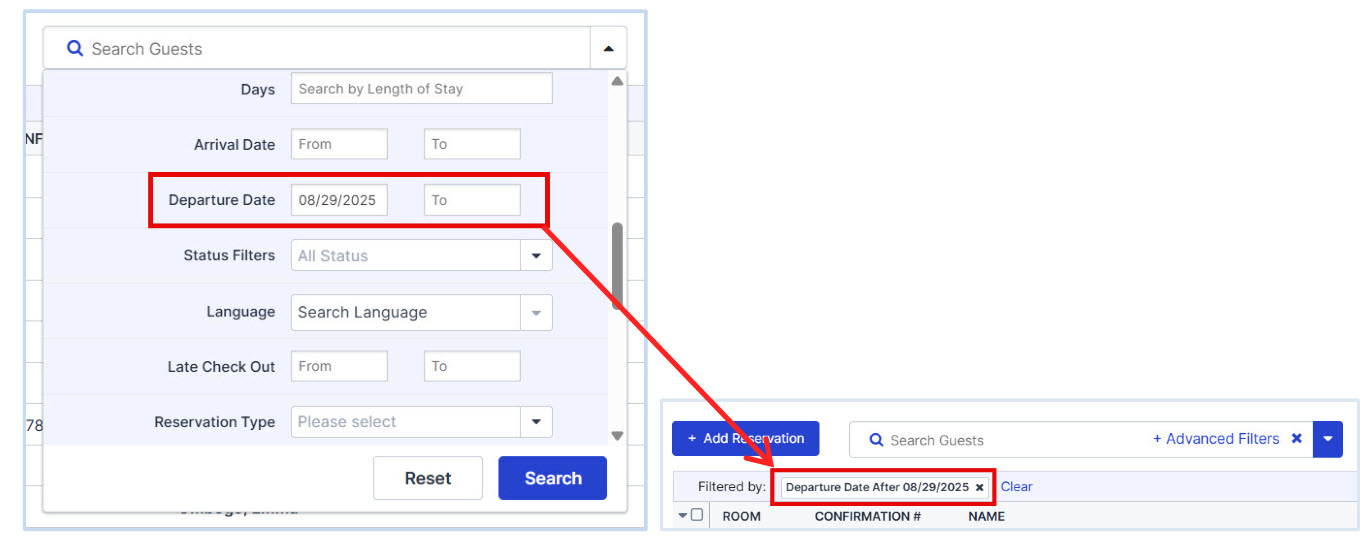
- Use the To field to filter to guests who have a departure date before the date selected.
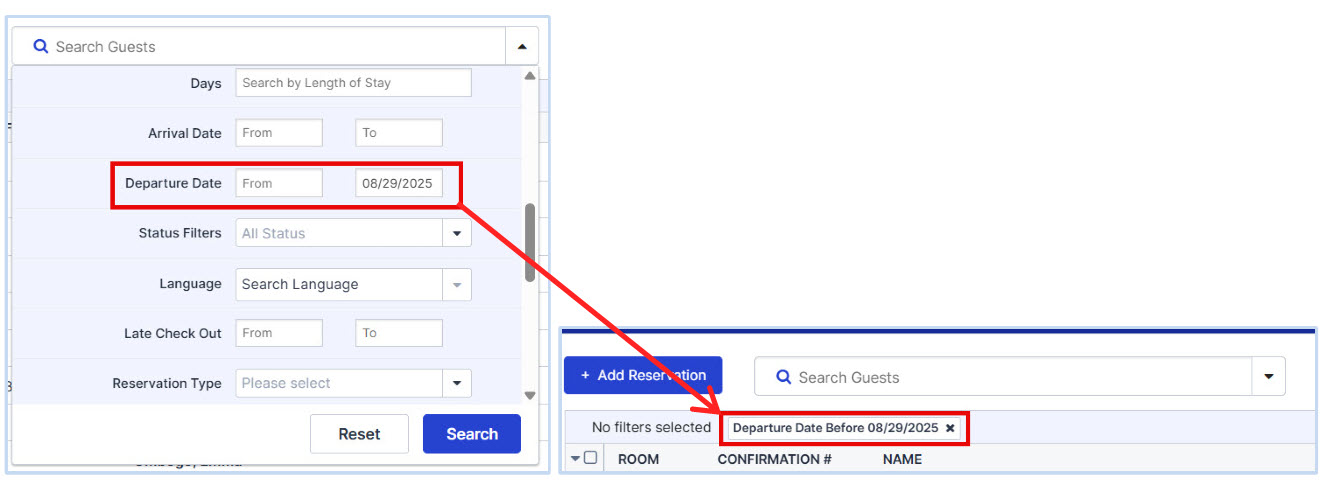
- To filter to guests who have a departure date on a particular date, enter the date into both fields.
- Click Search to see your filtered list of guests.
The Result Success: Your broadcast message will be successfully sent to the targeted group of guests via your selected delivery method.
Comments
0 comments
Article is closed for comments.